Deploy CAIPE with IDPBuilder
IDPBuilder is a CLI tool that creates a KIND cluster and deploys platform components via ArgoCD. The CAIPE stack adds authentication, secret management, and multi-agent AI capabilities.
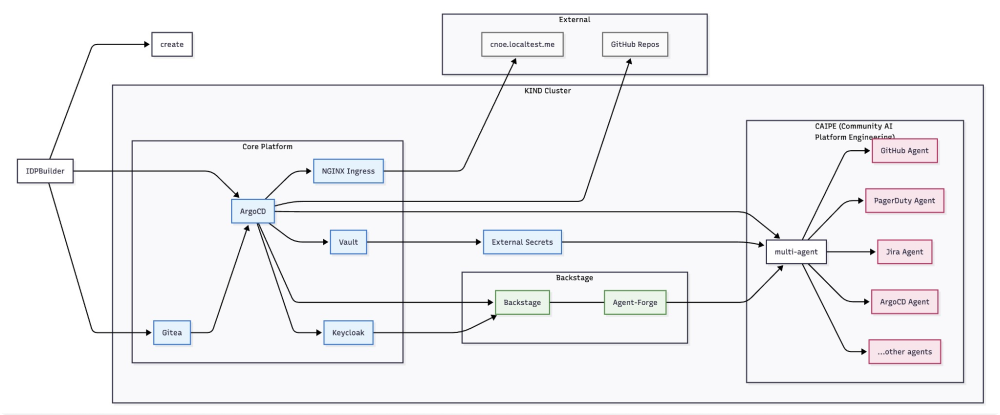
Component Flow
- IDPBuilder Initialization: Creates KIND cluster and deploys ArgoCD + Gitea as foundation
- Platform Deployment: ArgoCD deploys all platform components from Git repositories
- Authentication Setup: Keycloak provides SSO for Backstage and other platform services
- Secret Management: Vault stores secrets, External Secrets distributes to applications
- Developer Access: NGINX Ingress routes traffic, Backstage provides developer portal
- AI Integration: Agent-Forge plugin in Backstage connects to CAIPE MAS Agent
- Multi-Agent System: Orchestrator manages individual agents for different platform domains
Deploy the platform
Clone the repositories.
We use an additional stack to add authentication, secret management, and multi-agent AI capabilities:
cd $HOME/work
git clone https://github.com/cnoe-io/stacks.git
Adjust the urls in the deployment to match the lab/local environment. (if deployment is done on your local pc you can ignore theses steps)
cd $HOME/work/stacks/ref-implementation
find . -type f -name "*.yaml" -exec sed -i "s/cnoe\.localtest\.me/%%LABURL%%/g" {} +
cd $HOME/work/stacks/caipe
find . -type f -name "*.yaml" -exec sed -i "s/cnoe\.localtest\.me/%%LABURL%%/g" {} +
Deploy the platform.
Please use the following command to install idpbuilder
wget https://github.com/suwhang-cisco/idpbuilder/releases/download/v0.10.1-fix-7/idpbuilder
chmod +x ./idpbuilder
sudo mv ./idpbuilder /usr/bin
Start the deployment
cd $HOME/work
idpbuilder create --use-path-routing --host %%LABURL%% --port 8443 \
--package $HOME/work/stacks/ref-implementation \
--package $HOME/work/stacks/caipe/base
After the command completes, you should see output like the sample below. This confirms KIND cluster creation and that ArgoCD is reachable, but it does not mean the whole platform is fully deployed. ArgoCD will continue pulling images and bringing pods online, which typically takes around 5-10 minutes.
...
########################### Finished Creating IDP Successfully! ############################

Can Access ArgoCD at `https://cnoe.localtest.me:8443/argocd`
Username: admin
Password can be retrieved by running: idpbuilder get secrets -p argocd
Check the status of the pods in the cluster
kubectl get pods -A
You should see output similar to the one below:
outshift> kubectl get pods -A
NAMESPACE            NAME                                                READY   STATUS      RESTARTS        AGE
argo                 argo-server-6cfdd5ffd7-9nlfc                        1/1     Running     0               57s
argo                 workflow-controller-997b58f6d-6lwm6                 1/1     Running     0               6m38s
argocd               argocd-application-controller-0                     1/1     Running     0               7m28s
argocd               argocd-applicationset-controller-6c6d75b86f-q25gz   1/1     Running     0               7m28s
argocd               argocd-redis-6668955c45-tp7xp                       1/1     Running     0               7m28s
argocd               argocd-repo-server-7fd9bd6445-s59gh                 1/1     Running     0               7m28s
argocd               argocd-server-5db575d9fb-qtll7                      1/1     Running     0               7m28s
backstage            backstage-54d9f67c8d-dscdj                          1/1     Running     0               53s
backstage            postgresql-0                                        1/1     Running     0               57s
external-secrets     external-secrets-77d6658564-22l7z                   1/1     Running     0               6m49s
external-secrets     external-secrets-cert-controller-754b859548-xs4v7   1/1     Running     0               6m49s
external-secrets     external-secrets-webhook-85d48758f-wfg84            1/1     Running     0               6m49s
gitea                my-gitea-6847557d4d-r7t9v                           1/1     Running     0               8m10s
...
Please wait to see all the pods are created and running, except the ones from the ai-platform-engineering namespace. Run this command until the output is similar with the one before - check that backstage pod (not only backstage-dependency...) is in Running state.
If you are familar with k9s, you can also run k9s to see the status of the pods in the cluster (press 0 to see all pods if the list is empty).
k9s
Press 0 in order to see all pods. (Ctrl + c to exit)

Set the TLS certificate
Run below commands to set the TLS certificate for the cluster:
TLS_SECRET_NAME="idp-tls"
FULLCHAIN="/etc/cert/fullchain.pem"
PRIVKEY="/etc/cert/privkey.pem"

echo ">>> Waiting for ingress-nginx to become Available ..."
kubectl wait --for=condition=Available --timeout=180s deployment -A \
  -l app.kubernetes.io/name=ingress-nginx || true

echo ">>> Creating/updating TLS secret '${TLS_SECRET_NAME}' in namespaces that have Ingresses ..."
NS_LIST="$(kubectl get ingress -A -o jsonpath='{range .items[*]}{.metadata.namespace}{"\n"}{end}' | sort -u)"

echo "$NS_LIST" | while IFS= read -r NS; do
  [ -n "$NS" ] || continue
  echo "  - namespace: $NS"
  kubectl -n "$NS" create secret tls "$TLS_SECRET_NAME" \
    --cert="$FULLCHAIN" --key="$PRIVKEY" \
    --dry-run=client -o yaml | kubectl apply -f -
done

echo ">>> Patching Ingress objects to attach TLS"
echo "$NS_LIST" | while IFS= read -r NS; do
  [ -n "$NS" ] || continue
  IG_LIST="$(kubectl -n "$NS" get ingress -o jsonpath='{range .items[*]}{.metadata.name}{"\n"}{end}')"
  echo "$IG_LIST" | while IFS= read -r NAME; do
    [ -n "$NAME" ] || continue
    echo "  - ${NS}/${NAME}"
    kubectl -n "$NS" get ingress "$NAME" -o json \
    | jq --arg secret "$TLS_SECRET_NAME" '
        . as $orig
        | ([
            ($orig.spec.rules[]? | .host? // null)
          ] | map(select(. != null and . != "")) | unique) as $hosts
        | if ($hosts | length) > 0 then
            .spec.tls = [{hosts: $hosts, secretName: $secret}]
          else
            .spec.tls = [{secretName: $secret}]
          end
      ' | kubectl apply -f - >/dev/null
  done
done
Optional - Access ArgoCD and Monitor Deployments
Once the cluster is created, IDPBuilder outputs the ArgoCD URL for monitoring your colony's platform deployment.
Extract admin credentials for the ArgoCD UI:
idpbuilder get secrets -p argocd
Open ArgoCD by clicking here (use the lab panel interface) and login with the retrieved credentials. (You can resize the lab content view to have better visibility for ArgoCD)
From the ArgoCD UI, you can monitor the sync status of all the argocd applications - for example the Vault application. Wait until the sync status is Synced for Vault like below:
Note: Vault will be on the 2nd page of the ArgoCD UI.
Click here or on the Terminals icon to go back to the terminal view. You can switch back at any point.
Configure Vault Secrets for the caipe stack
The following agents are enabled by default: GitHub, ArgoCD, and Backstage.
We also require LLM credentials to be configured for each agent to work.
For ArgoCD and Backstage, we will automatically populate the secrets for you to use the local deployment credentials.
Confiugure your details
The Github access token was already configured in the previous section of the workshop. The LLM connection details are already provided for you as part of the lab. For LLM connectivity, currently Azure OpenAI, OpenAI, and AWS Bedrock are supported.
Check out the documentation for more details.
Add credentials to vault
Now that we have the needed secrets for the agents, we need to populate them in the vault and to refresh the secrets in the stack. Run below command to do all these steps. (If you prefer to set those manually, please refer to the documentation):
$HOME/work/stacks/caipe/scripts/setup-all.sh --envFile $HOME/.env_vars
Verify secret are stored in the cluster
kubectl get secrets -n ai-platform-engineering
Verify that the pods in the ai-platform-engineering are Running now
kubectl get pods -n ai-platform-engineering
You should see an output similar with:
outshift> kubectl get pods -n ai-platform-engineering
NAME                                                           READY   STATUS    RESTARTS   AGE
ai-platform-engineering-agent-argocd-66d78df58c-tm6tn          1/1     Running   0          2m51s
ai-platform-engineering-agent-argocd-mcp-77f6c6cdff-5nslq      1/1     Running   0          2m51s
ai-platform-engineering-agent-backstage-9c4bcc899-mnvbx        1/1     Running   0          2m51s
ai-platform-engineering-agent-backstage-mcp-5677bdfb85-5jl25   1/1     Running   0          2m51s
ai-platform-engineering-agent-github-7b656f7cc-qb9lh           1/1     Running   0          2m51s
ai-platform-engineering-supervisor-agent-6c8948c5b6-tncvq      1/1     Running   0          2m51s
Access Developer Portal (Backstage)
First fetch the user password for the user1:
kubectl -n keycloak get secret keycloak-config -o jsonpath='{.data.USER_PASSWORD}' | base64 -d; echo
We need to authenticate to Backstage using Keycloack in a new tab. After successful authetication please close the tab and come back to the lab.
Copy the password, open Backstage in your browser and login with:
- Username:
user1 - Password:
<from the command above>
Open Backstage at: https://cnoe.localtest.me:8443/
Activate the Agent forge AI Assistant
Access and test the multi-agent AI system integrated into Backstage.
Access the AI Assistant
Open Backstage (use the lab panel interface)
(you can resize the panels to have better visibility, also use full-screen view for Backstage)
- Look for the AI agent icon in the bottom-right corner
- Click to open the AI assistant
- Start interacting with the multi-agent platform engineering system
Test Basic Functionality
Try a first interaction:
What can you do?
Test Agent-Specific Features
Try out different interactions with the supervisor agent. Some examples commands you can try out are:
ArgoCd information:
What ArgoCD version are you using?
Backstage Info:
Show me current software catalog version
Github Info:
Show me the repositories I have
Feel free to try out other agents as well.
Troubleshooting
Be sure to be in Terminal mode.
Check IDPBuilder logs
idpbuilder get logs
Verify KIND cluster status
kind get clusters
kubectl cluster-info
Check ArgoCD application status
kubectl get applications -n argocd
Force sync specific application
argocd app sync <application-name>
Check Vault pod status
kubectl get pods -n vault
Verify secret creation
kubectl get secrets -n ai-platform-engineering
Check agent pod logs
kubectl logs -n ai-platform-engineering -l app=multi-agent
Restart agent pods
kubectl delete pod --all -n ai-platform-engineering